Scripted VirtualDub Job Creation

  DownloadDownload

I've got two scripts here. VirtualDub.vbs and VirtualDub.wsf.  Both scripts create VirtualDub "jobs" files to help automate repetitive tasks. Both scripts can use pre-existing VCF files (saved VirtualDub settings) to build the "jobs" file. The VBS script is used to apply identical video processing settings to all video files in a directory. The WSF script is used to split all video files in a directory into image file sequences. To download both scripts, click the "Download Now!" icon near the top-right of this page. If  my scripts aren't enough for you, you may want to check out DubMan from Jeff Myers.


VirtualDub.vbs

This VBScript for VirtualDub allows you to automate the creation of a VirtualDub "Job Control" (.jobs) file. The created job file will apply the same video and audio processing to groups of files -- in fact, it will apply your filter rules to every video file in a target directory. The starting point for determing what filtering and processing is to be applied is a saved VirtualDub "Configuration" (.vcf) file.

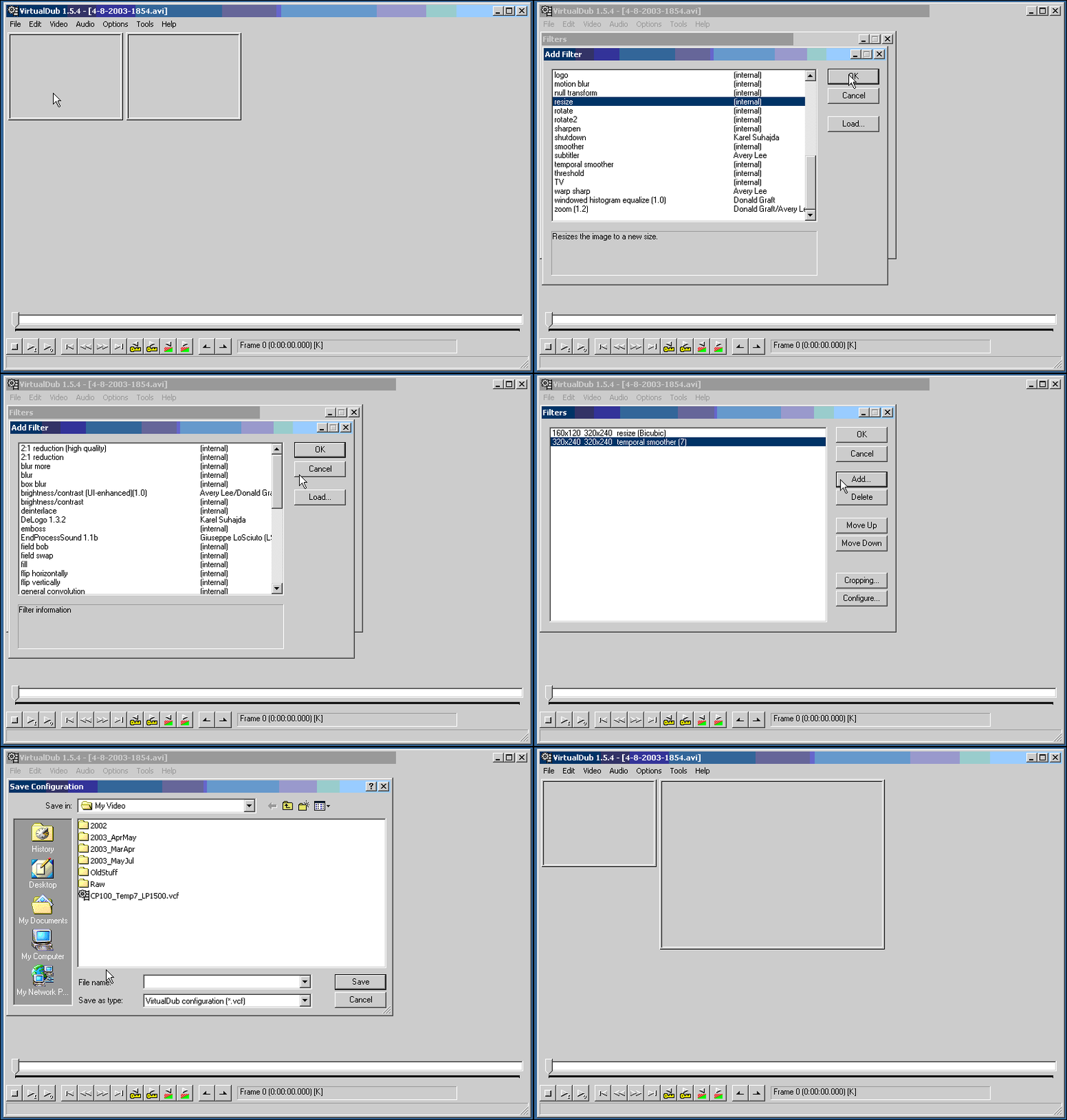
See a demo of how to save VirtualDub configurations into a VCF file.
See a demo of the script creating a JOBS file for a folder full of videos from one VCF file.

After you have some saved settings, you can start the script in any of a number of ways. You can specify everything on the command line, but nobody does that! It means typing. I hate typing. You can just run the script by double-clicking it. YUK! That's almost as bad as typing! Don't do that. It will ask you to browse to find what VCF file you want to use. Save yourself that step and drop your desired VCF file on the script. Or save yourself even more work and set up a right-click association so you can start the job creation process with a simple click.

Once the sript really starts running, it tries to make some guesses to minimize your work. Or really, to minimize my work, since I wrote it for myself.

First, it asks for a list of file types to process. I only work with AVI files, but I always click OK on the entire list because as long as I don't have any MPG files in that directory, it doesn't hurt anything.

Next, the script asks what folder the source videos are in. It assumes the source videos will be in the same directory as the VCF file. Pretty reasonable if you keep all your project files together. If so, you can just hit the "Cancel" button on the folder browsing dialog to accept the default. If  you aren't like me, your punishment is having to browse for your source folder.

Next, the script asks where to put the processed videos. Since the output video files will have the same name as the input files, they can't go in the same directory. The script will try to guess your destination folder to save you from having to browse for it. If there are subdirectories below your source folder, it will guess the most recently created folder is the destination.  Since I usually create a sub-folder called "Compressed" or "Filtered", that works for me. If there are no subdirectories, it will assume the parent directory is the destination. If  you don't like the guess the script makes, well, you get to browse for your destination folder.

Next, the script creates a JOBS file. Instead of asking you where to create the file, it just does it. The created JOBS file will have the exact same name and location as the script (except for the file extension, which will be .jobs). Which means you should put the script in the same directory as your VirtualDub executable. Unless you want the bother of  moving the jobs file every time. Masochist!

VirtualDub only looks at JOBS files when it first starts, so you may need to restart VirtualDub if it was already running. From there, start "Job Control" from the "File" menu. Press the "Start" button and go get a snack.


VirtualDub.wsf

You know the verbose description above? Well, just imagine the same thing here except that this script helps generate image sequences from all your videos. If you have some processing you'd like to apply as you're generating your images, you can use a stored VCF file. If you think your video frames are just fine the way they are, you can just cancel out when the script asks you for a VCF file.  Like the above VBS script, this WSF script also makes bad guesses about where your files are at.  To make it easy on myself, I don't let you pick names for your image sequence. For example, if you start with "test.avi", then your images are going to start with the word "test", followed by sequential numbers, then a file extension. No, I know what you're thinking. But it won't work. Trying to use a common name for your images just makes VirtualDub overwrite your images for each video it processes.


Lost? Look at the site map.

Bad links? Questions? Send me mail.

Google
Yahoo
Ask Jeeves
PicoSearch